Download a video from Mediasite and upload it to the Media Asset Management System (MAM)
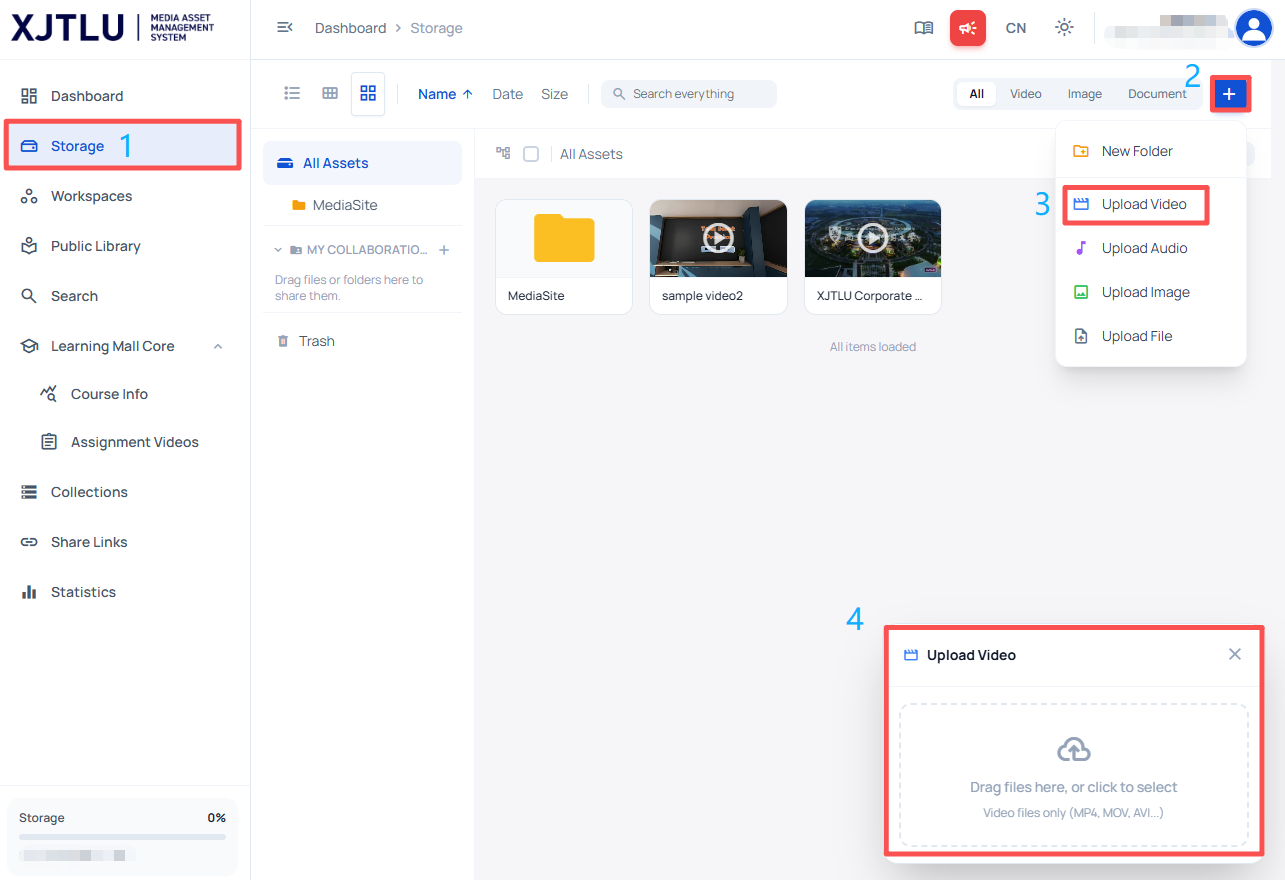
An example of uploading video to MAM
Overview:
This operation guide demonstrates how to download a video from Mediasite https://video.xjtlu.edu.cn/ and upload it to the Media Asset Management System (MAM) https://media.xjtlu.edu.cn/.
What to know:
Media Asset Management System (MAM) is the upgraded replacement for Mediasite and serves as a video hosting solution for all XJTLU faculty, allowing users to upload, manage, and publish video content in any Learning Mall module.
Table of Contents
Step 1: Download the video from Mediasite
1. Log in to Mediasite with your XJTLU account at https://video.xjtlu.edu.cn/.
2. Open the video you want to migrate.
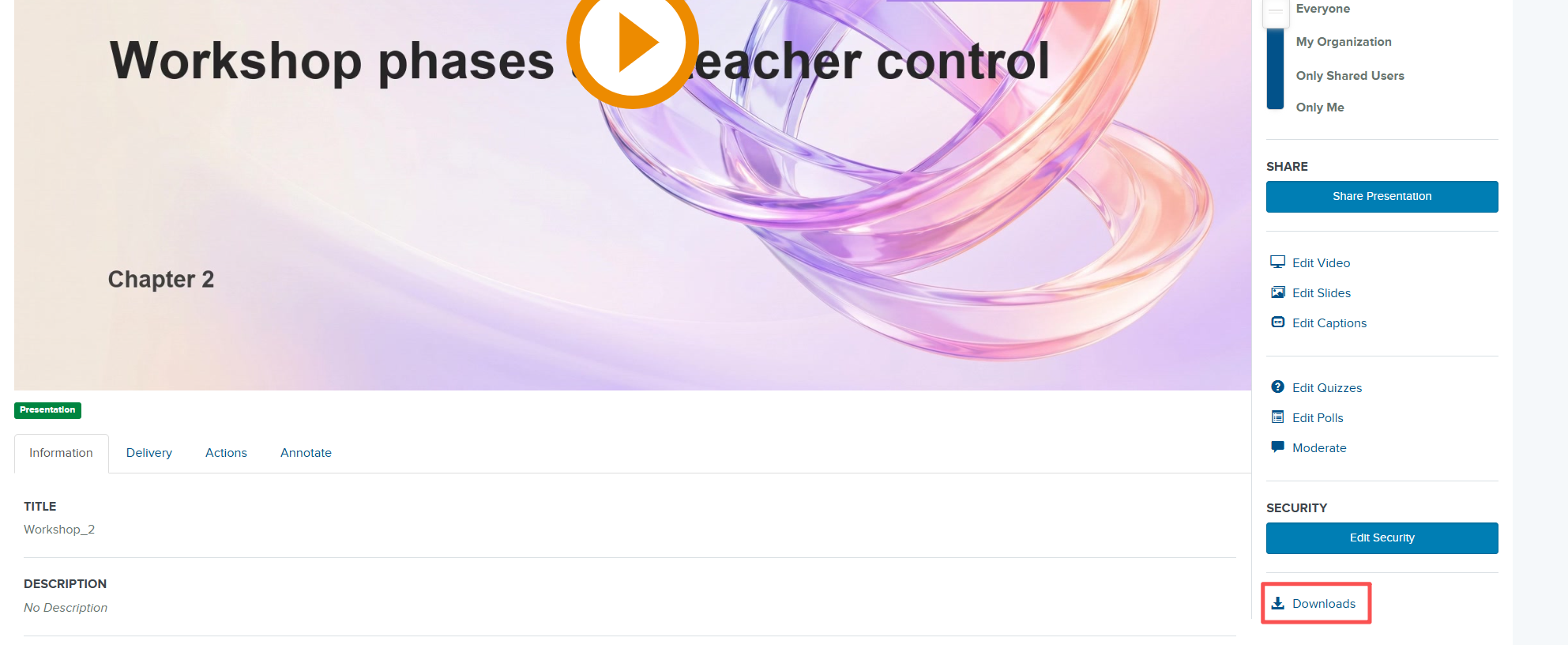
3. Click "Downloads" at the bottom-right corner of the video player.
4. Save the downloaded video file to your computer.
Step 2: Log in to the Media Asset Management System (MAM)
1. Navigate to the MAM at https://media.xjtlu.edu.cn/.
2. Log in with your XJTLU account.

Step 3: Upload the video to MAM
1. Select "Storage" in the left-hand directory.
2. Click the "+" button at the top-right corner, then select "Upload Video".
3. Drag the downloaded video file into the upload box.
4. Wait for the upload to complete.