How to bulk create Question Bank categories
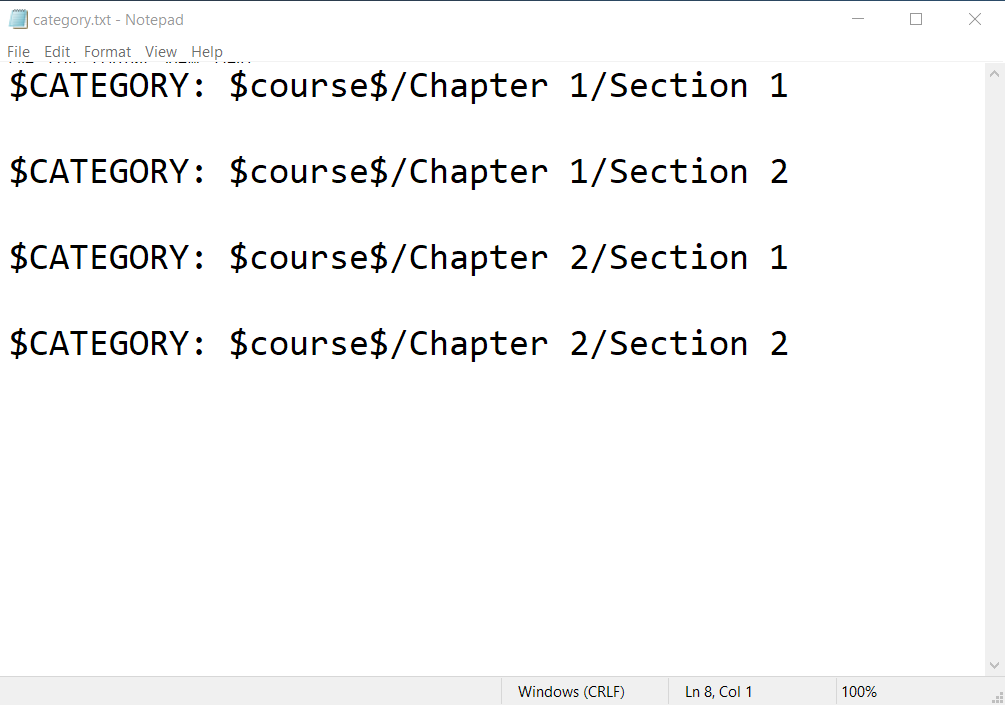
An example of GIFT format
Overview:
This guide will show you how to bulk create Question Bank categories in Learning Mall Core using a GIFT format text file.
What to know:
Question Bank categories help organise questions in a course. You can create multiple categories at once by importing a GIFT file with category paths.
Table of Contents
Step 1: Prepare the category list
Create a text file and enter the category paths in GIFT format, for example:
$CATEGORY: $course$/Chapter 1/Section 1
$CATEGORY: $course$/Chapter 1/Section 2
$CATEGORY: $course$/Chapter 2/Section 1
$CATEGORY: $course$/Chapter 2/Section 2
(You can download the template at the bottom of the article.)
Each line represents one category path.
Note: Leave one blank line between each path.
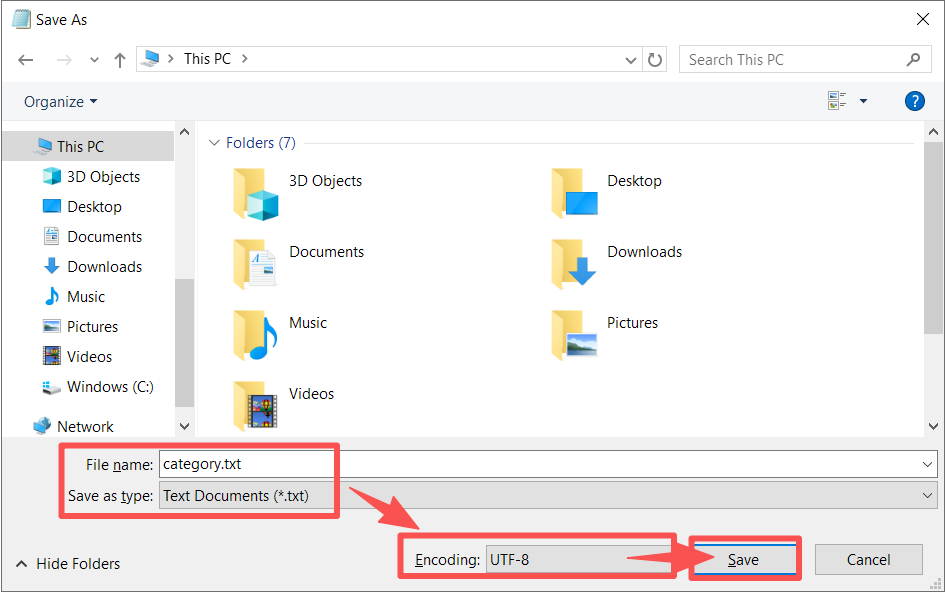
Step 2: Save the file as a text file
Select a location to save the file.
Save the file as a .txt file encoded in UTF-8.
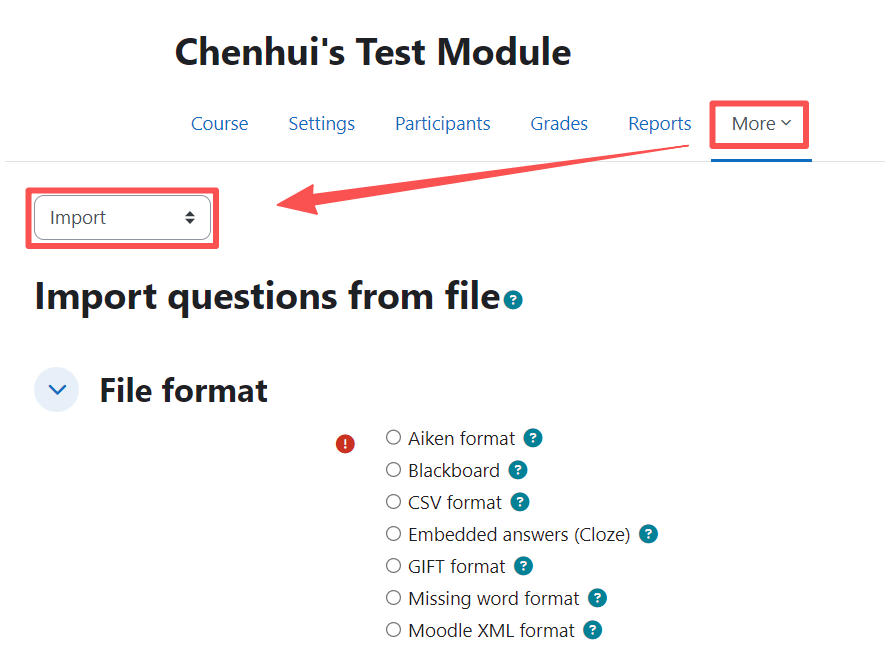
Step 3: Open the Question Bank import page
Go to your course in Learning Mall Core, open Question bank, and then select Import.
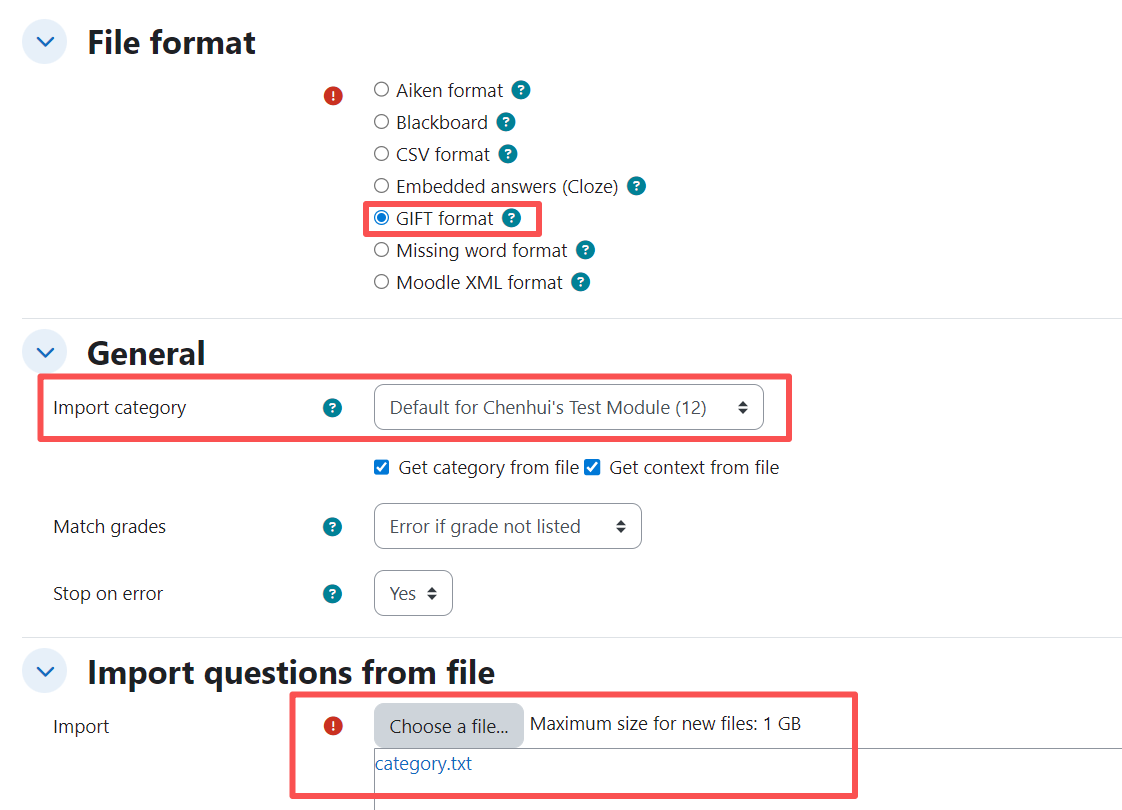
Step 4: Import the GIFT file
Choose GIFT format as the import format.
Under Import category, select an appropriate parent category.
Upload the text file and start the import.
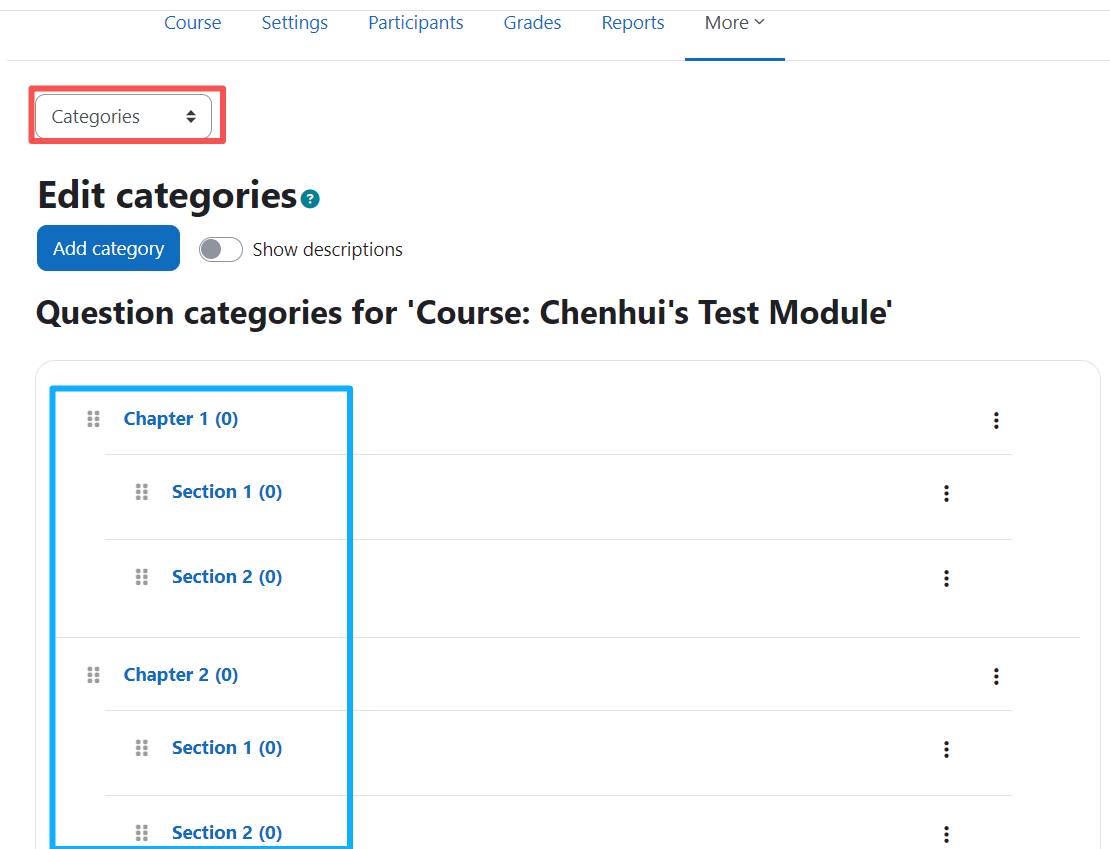
Step 5: Check the created categories
After the import is complete, go to Categories in the Question Bank and confirm that all categories have been created correctly.
Next steps:
Now that you have finished creating question bank categories, you may be interested in the following related articles:
Import questions from an existing file
Importing questions through Aiken format
Article Number: 423
Author: Mon, Jun 1, 2026
Last Updated: Mon, Jun 1, 2026
Author: Knowledge Base Administrator
Online URL: https://knowledgebase.xjtlu.edu.cn/article/how-to-bulk-create-question-bank-categories-423.html