Add a video to the Learning Mall module
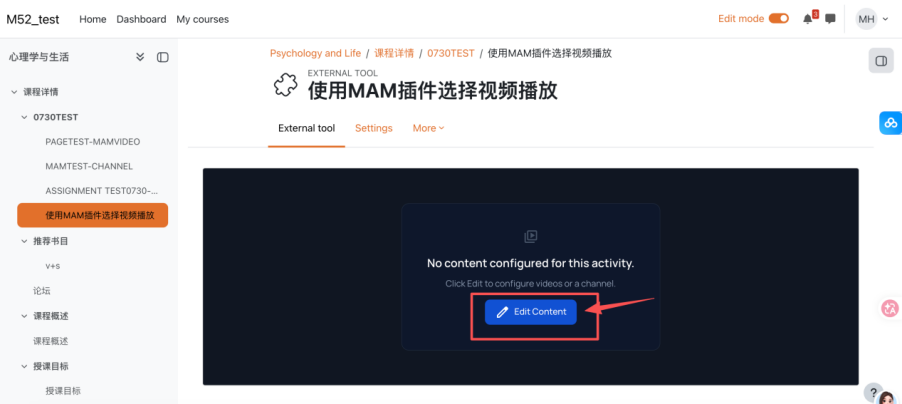
An example of Media Resources activity
Overview:
This operation guide demonstrates how to use the Media Resources activity to publish existing Media Asset Management System (MAM) videos or video collections to your Learning Mall Core modules.
What to know:
Media Asset Management System (MAM) is a video hosting solution for all XJTLU faculty which can be used to upload, manage and publish video content in any Learning Mall module. All videos published to Learning Mall Core via the Media Resources plugin automatically collect student viewership statistics within MAM. Instructors may use this data to analyze student learning participation.
Table of Contents
Step 1: Add the Media Resources Activity to your Course
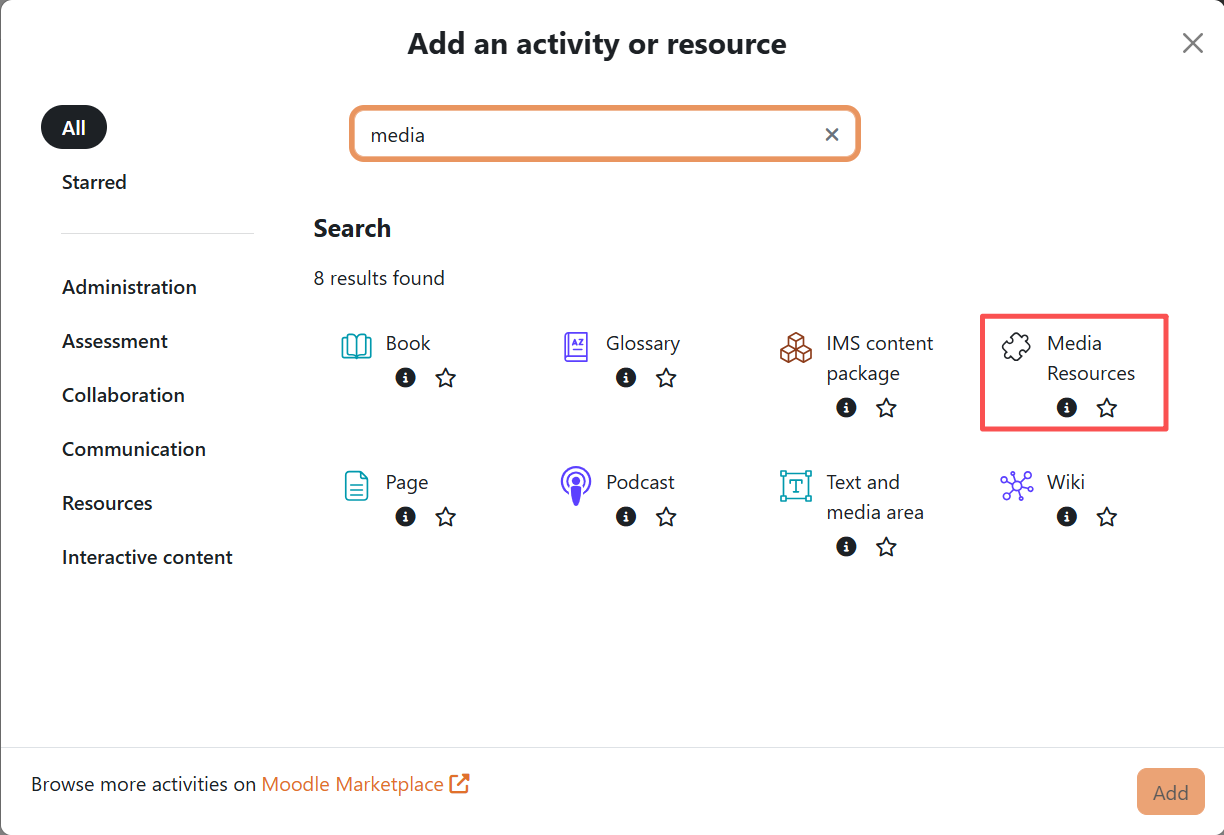
- Click Add an activity or resource
- Search the keyword "media".
- Select the "Media Resources" result and click Add
Step 2: Fill in Activity Information
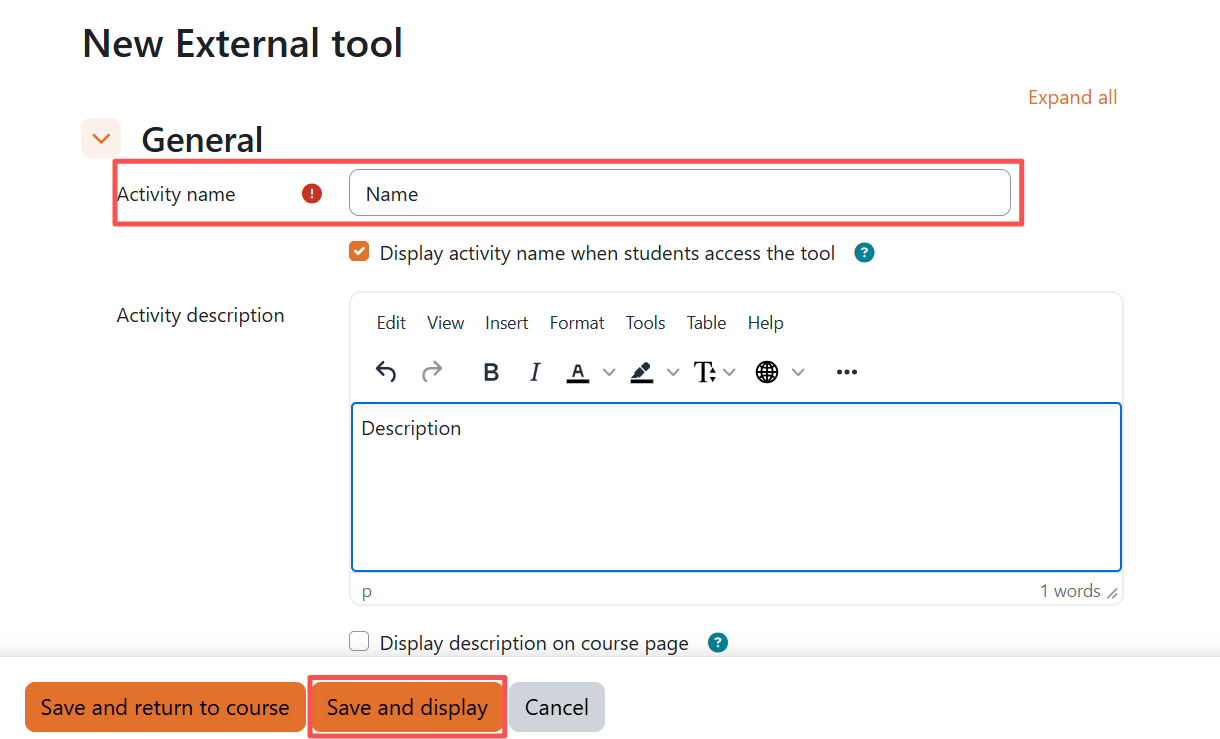
Input the Activity Name and required descriptive details, then save your configuration.
Step 3: Edit Embedded Video Content
Click the “Edit Content” button on the blank activity page.
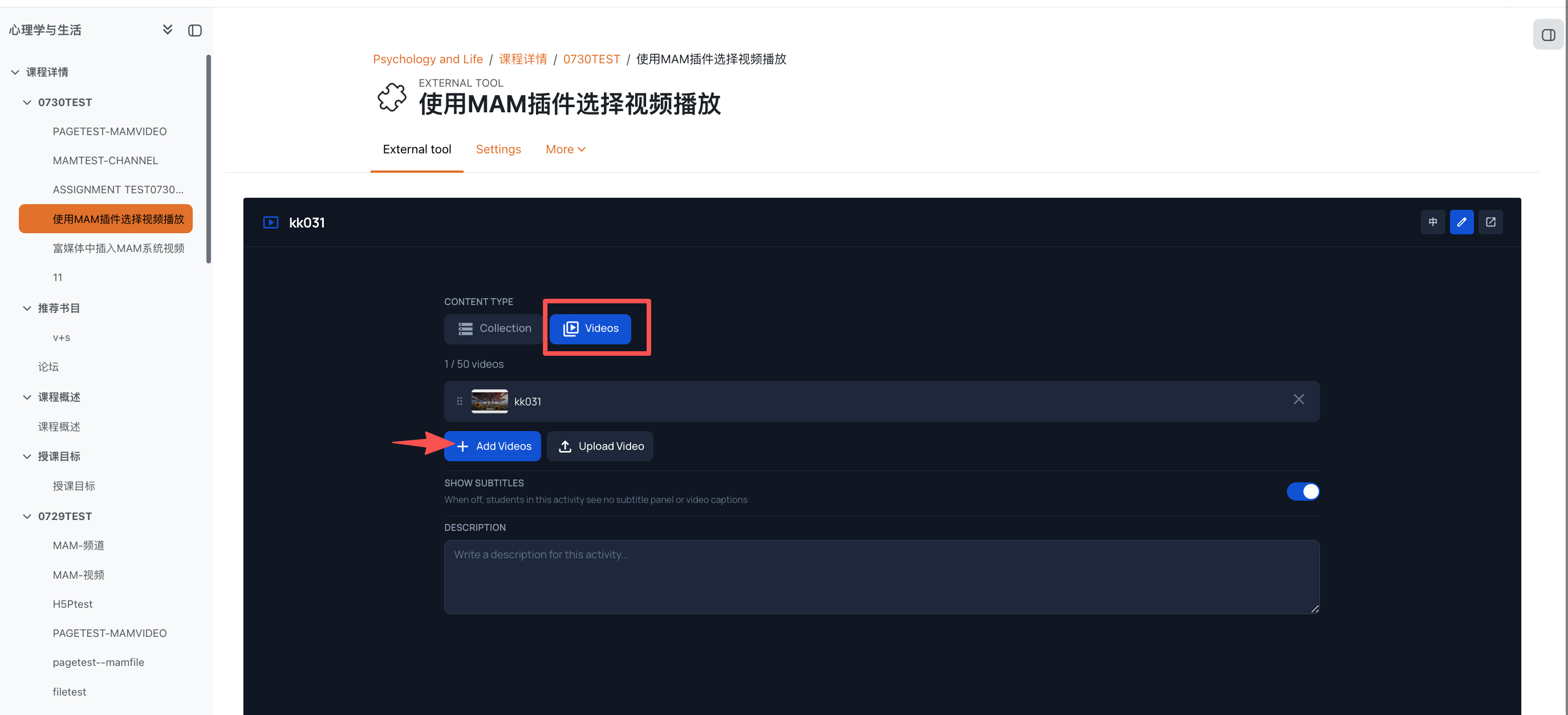
Method A: Select Standalone MAM Video Files
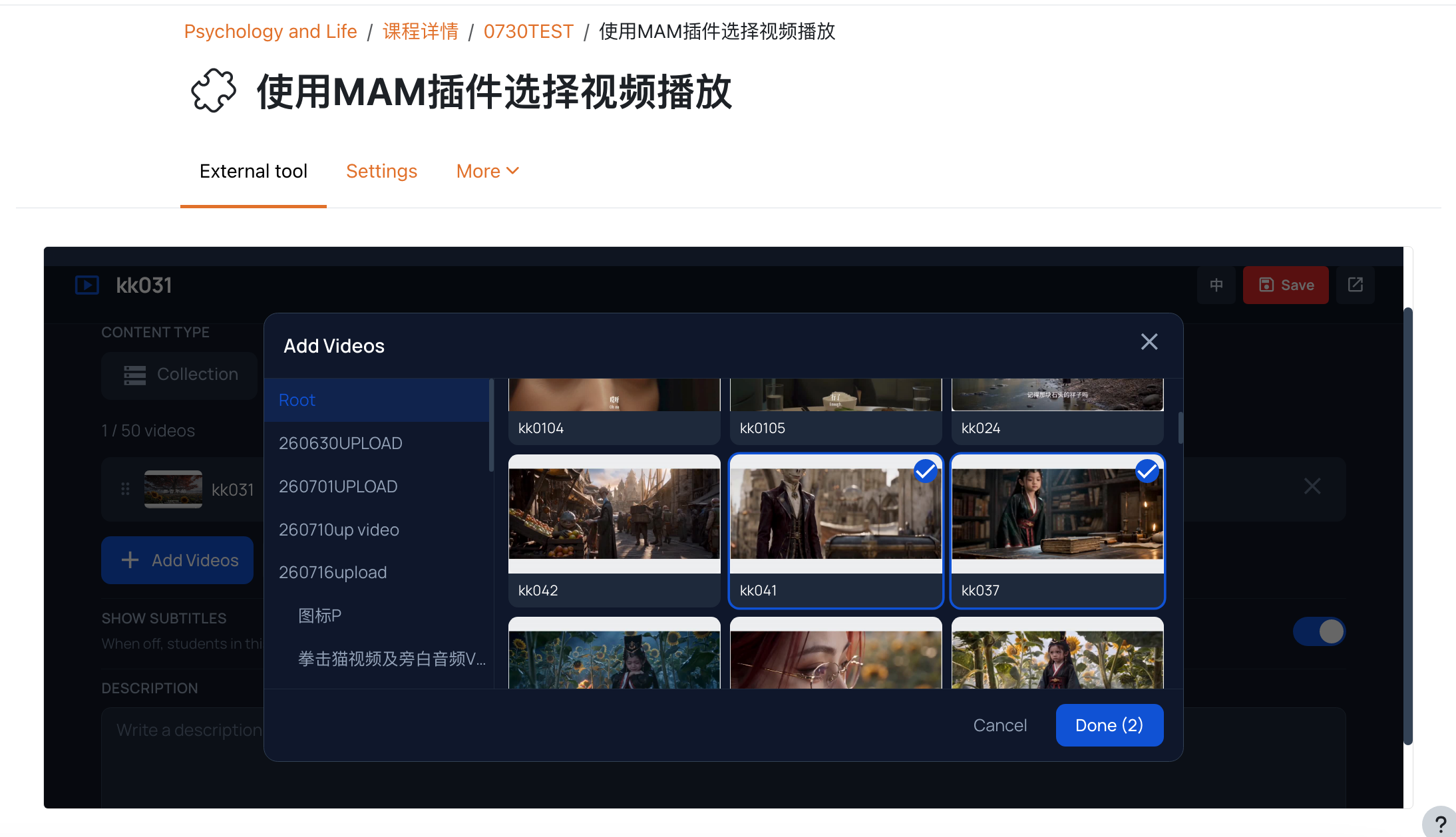
- Toggle to the Videos tab and click “+Add Videos”
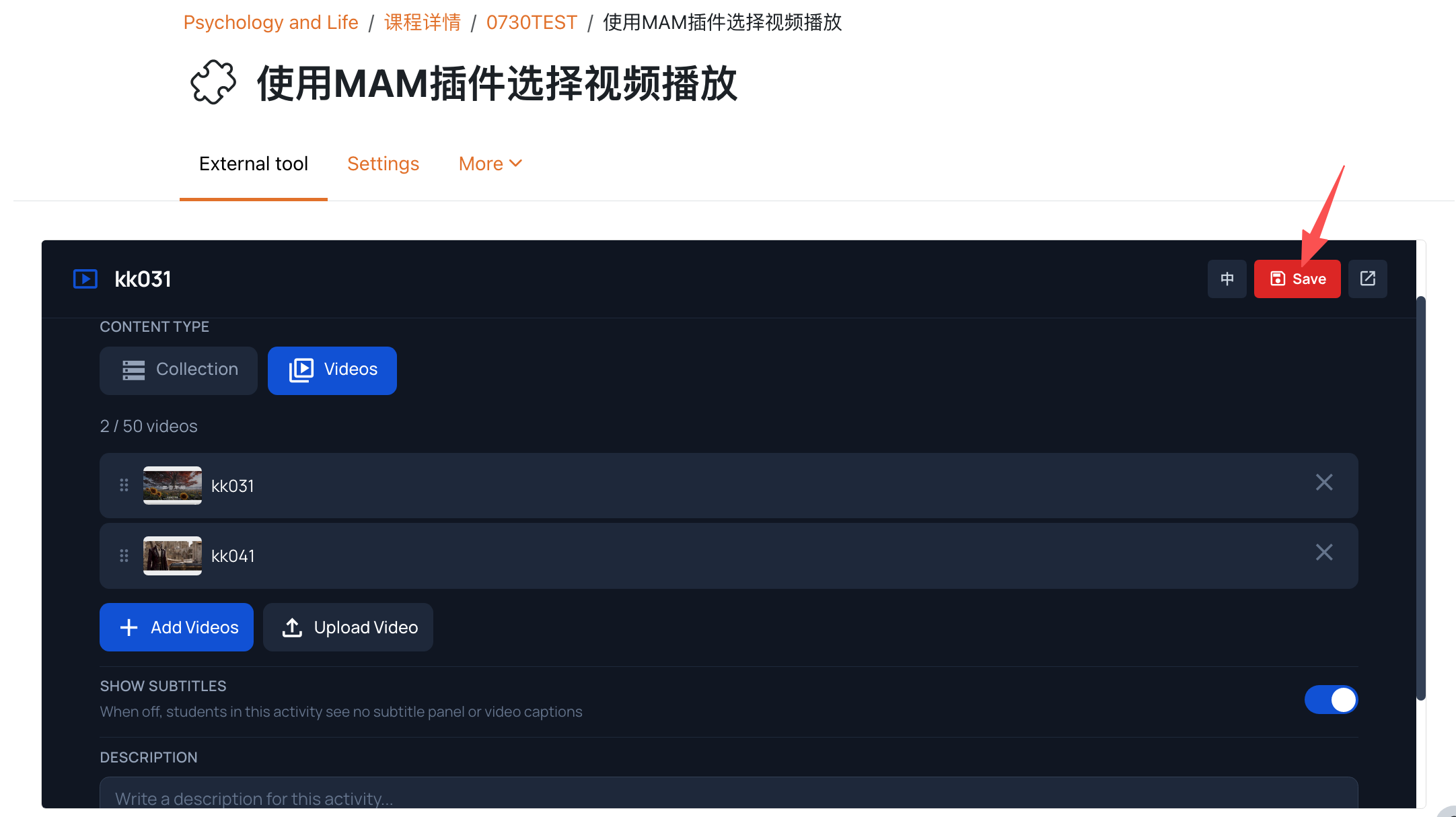
- Navigate to your target MAM storage folder, select one or multiple video files, then
click” Done”. - Confirmed your video selection, click “Save”.
Method B: Select MAM Video Collections
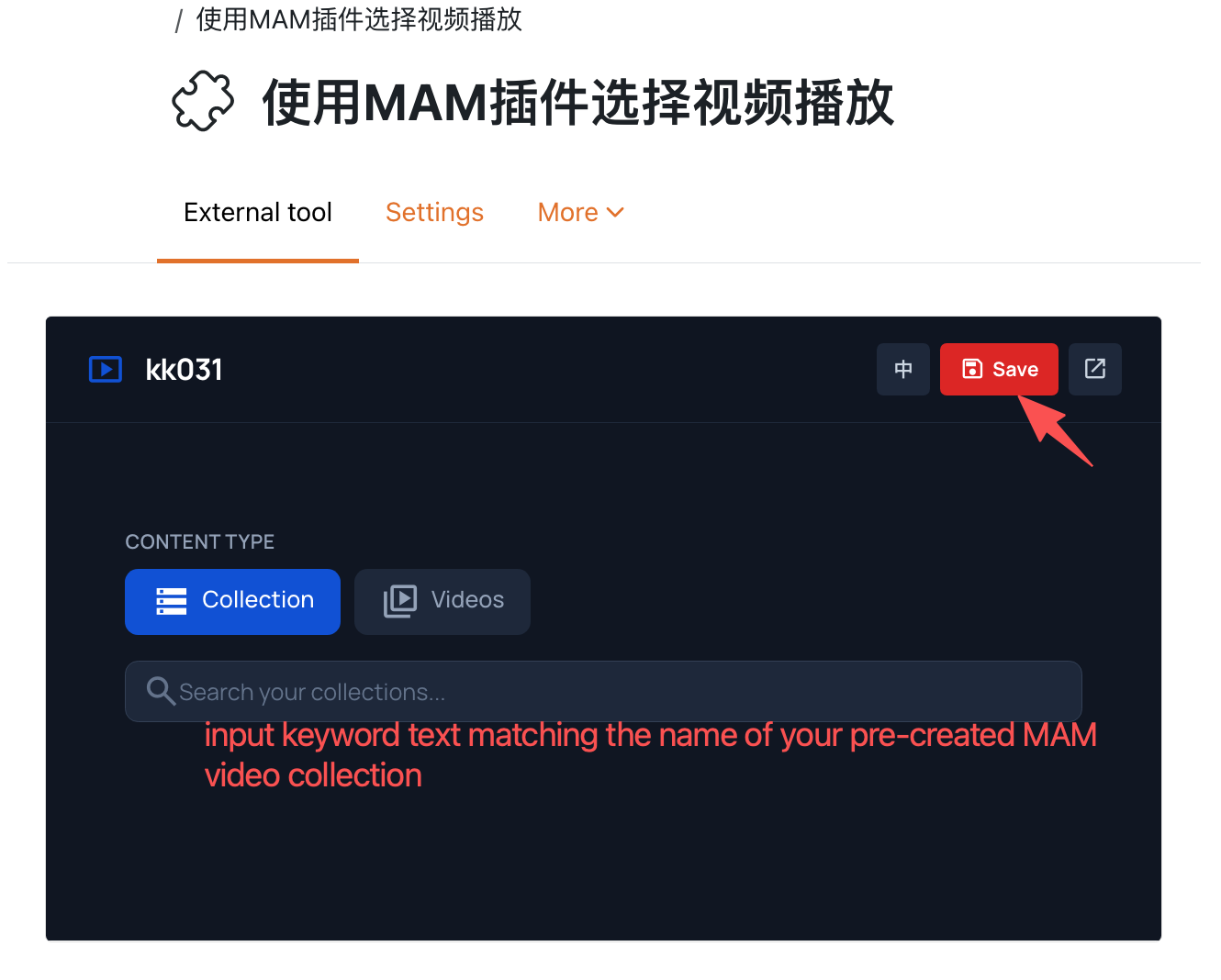
Toggle to the Collection tab, input keyword text matching the name of your pre-created
MAM video collection, then select the matching collection . Click “Save” button.
Next steps:
Now that you have finished creating a [Media Resources] activity, you may be interested in the following related articles: