Embed a video directly onto the LM Core page
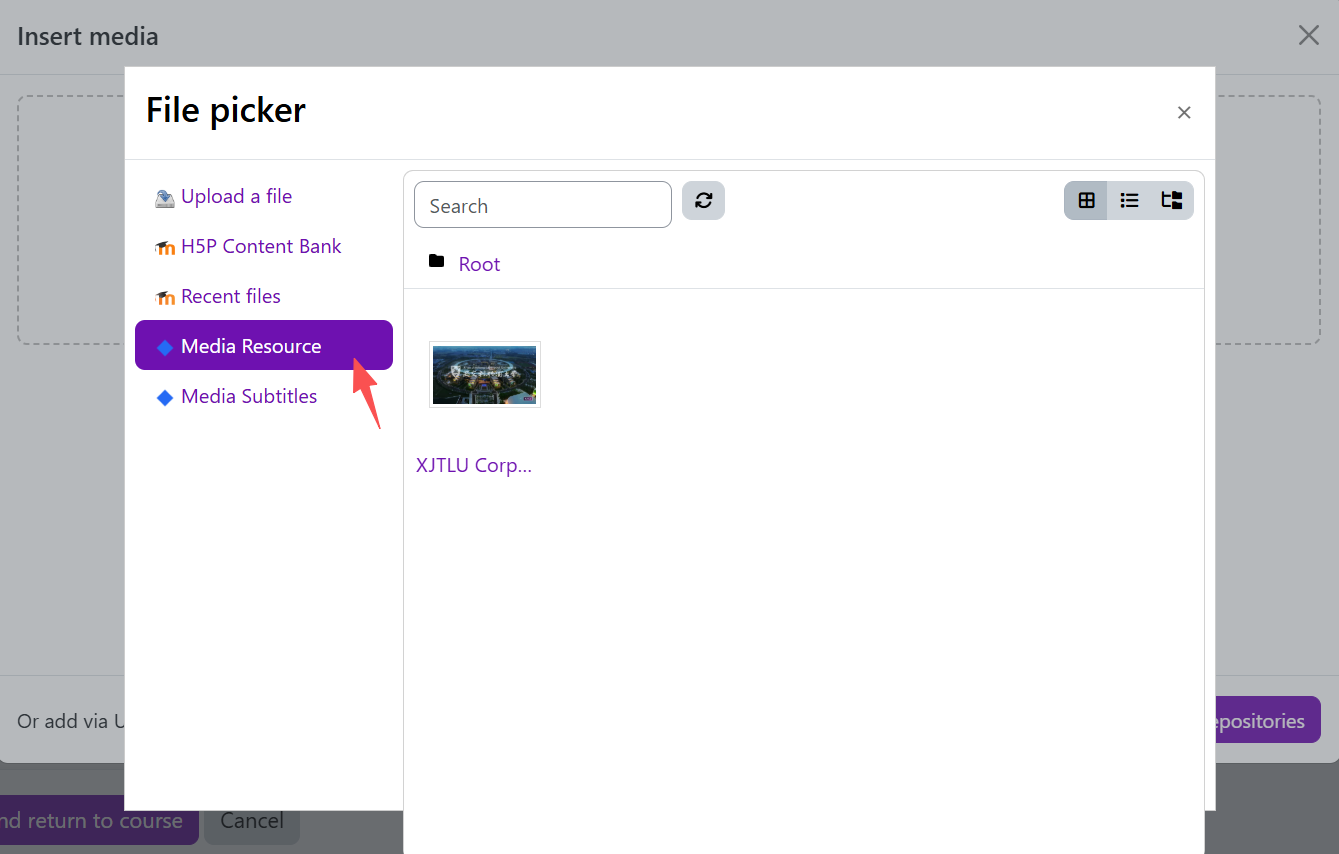
An example of multimedia repositories
Overview:
This guide outlines the workflow for embedding existing Media Asset Management System (MAM) video into Learning Mall Core course pages using the built-in rich text editor of the Text and media area activity.
What to know:
Embedding the video directly onto the LM Core page can allow your viewers to play the video right on the LM Core page instead of having to go into Media Resources to play the video. It could also make the contents on your page look richer and more straight-forward.
Table of Contents
Step 1: Open Multimedia Insert Function in Editor
Select an activity with a rich media editor, such as a Text and media area activity.
Click the “Insert” dropdown menu, then select “Multimedia”.
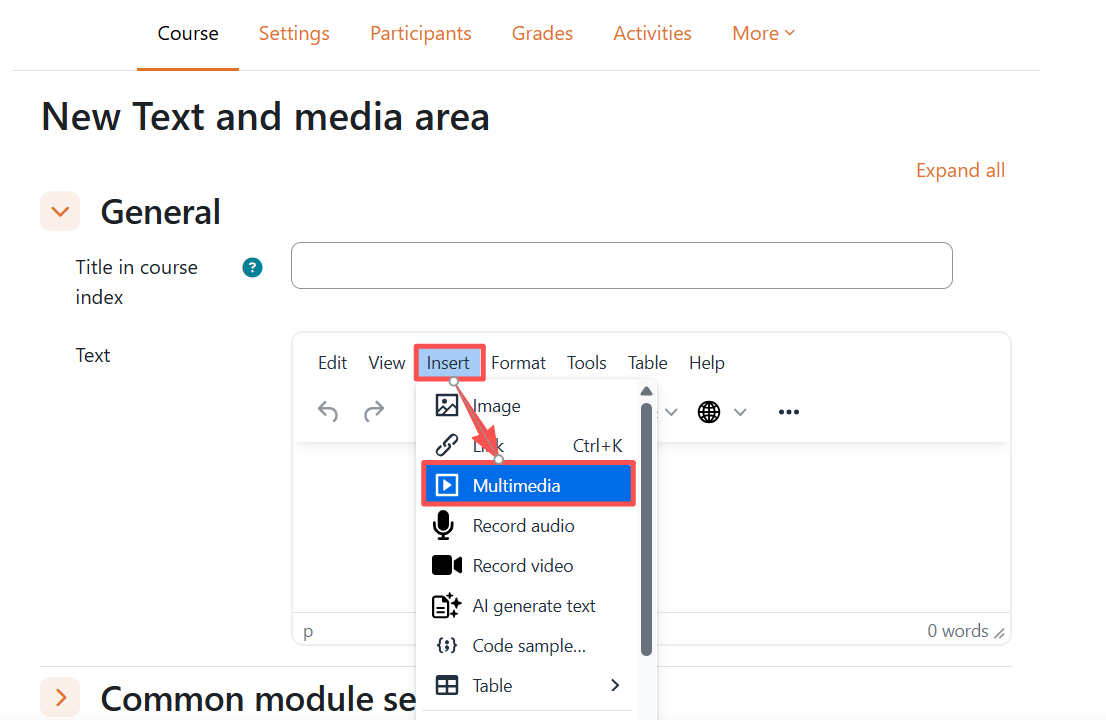
Step 2: Access Resource Repository Browser
On the Insert Media modal window, click Browse repositories.
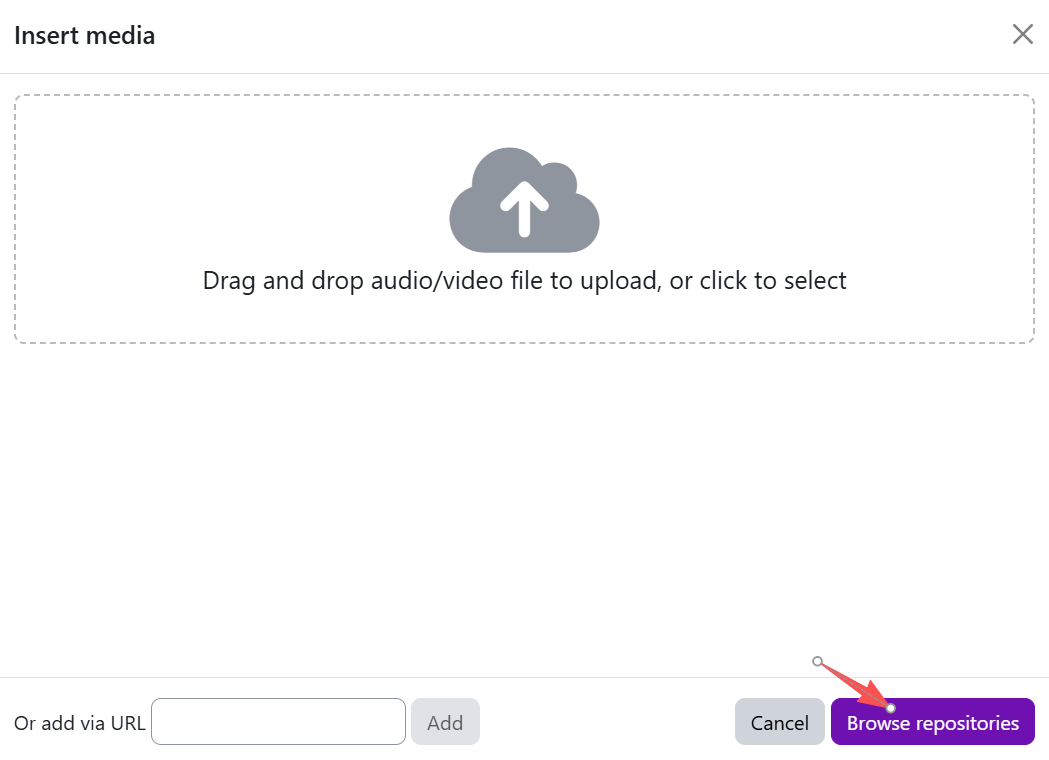
Step 3: Select MAM Video
- Select the MAM Media repository folder, navigate to your target video file, and click
- Select this file.
- Save
Next steps:
Now that you have finished embed a video directly onto the LM Core page, you may be interested in the following related articles: