5. How to generate images via Xipu AI Gallery-Text to Image
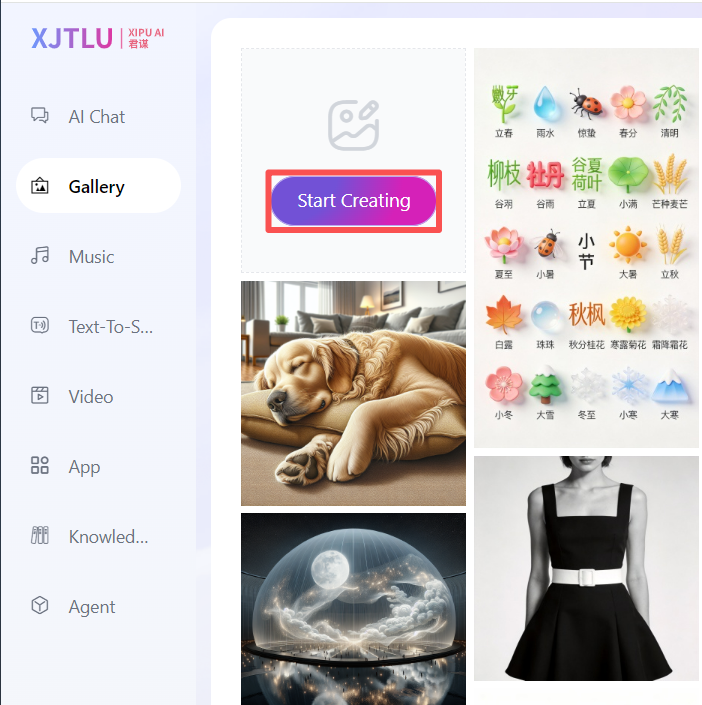
An example of Gallery in XIPU AI platform
Overview:
This guide will show you how to generate images using the Gallery feature in XIPU AI.
What to know:
The Gallery feature allows users to generate images by inputting text descriptions and blending the images.
Table of Contents
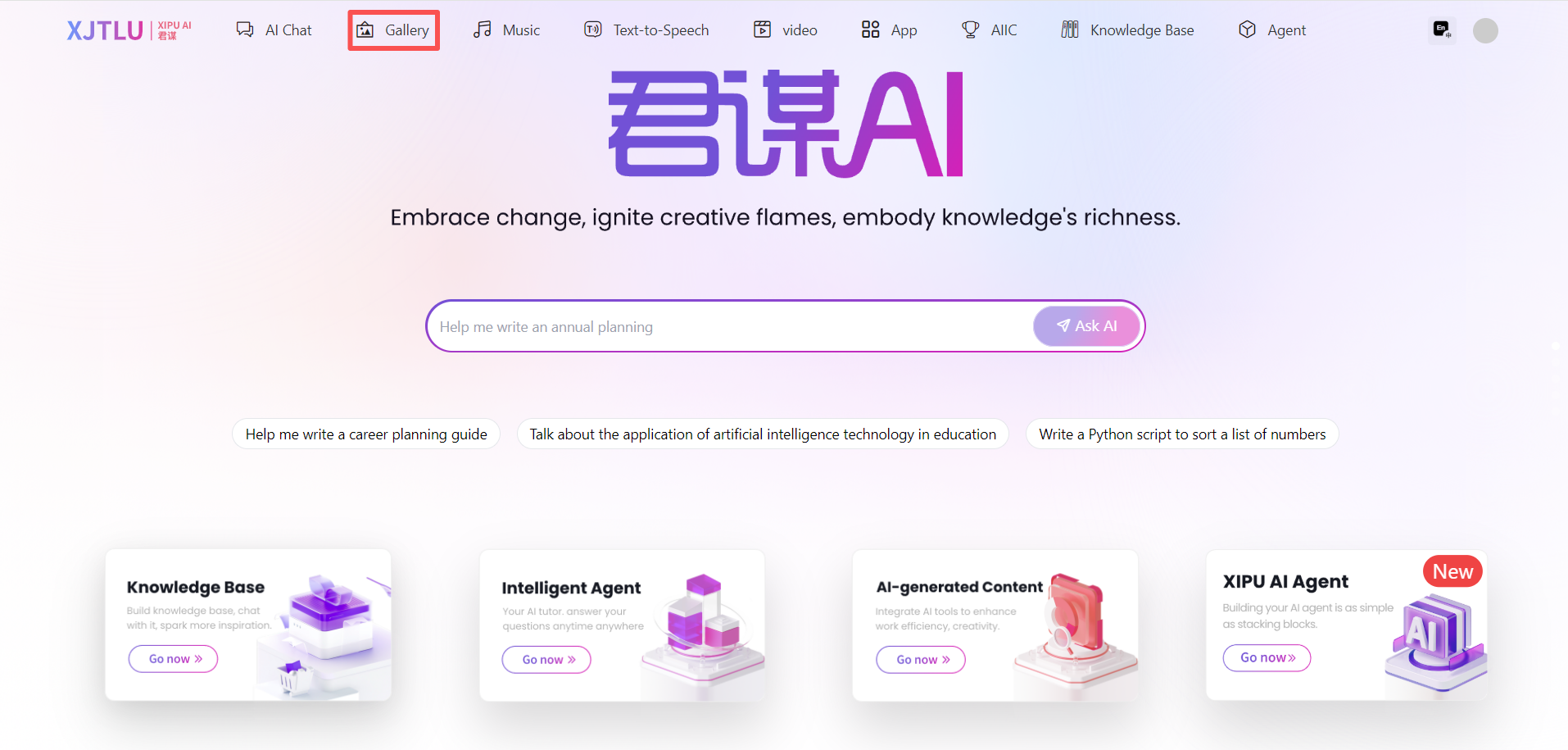
Step 1: Open Gallery
Visit https://xipuai.xjtlu.edu.cn and click the Gallery icon on the top.
Step 2: Click 'Start Creating' on the Gallery page
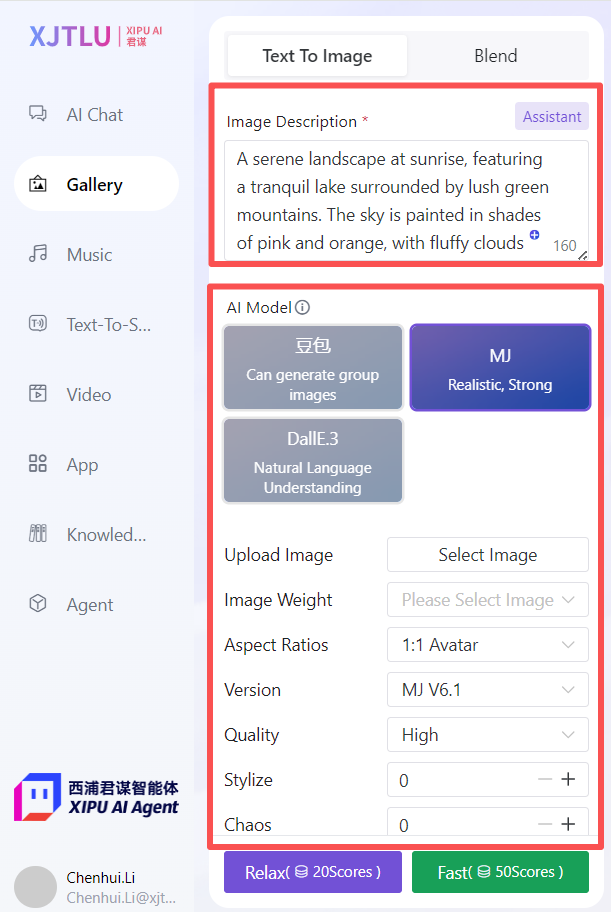
Step 3: Input description and adjust parameters to generate images
- Input description in the Image Description area
Suggestion: Use the Assistant feature to help you optimize your input description. - Adjust parameters
- Click Relax/Fast button
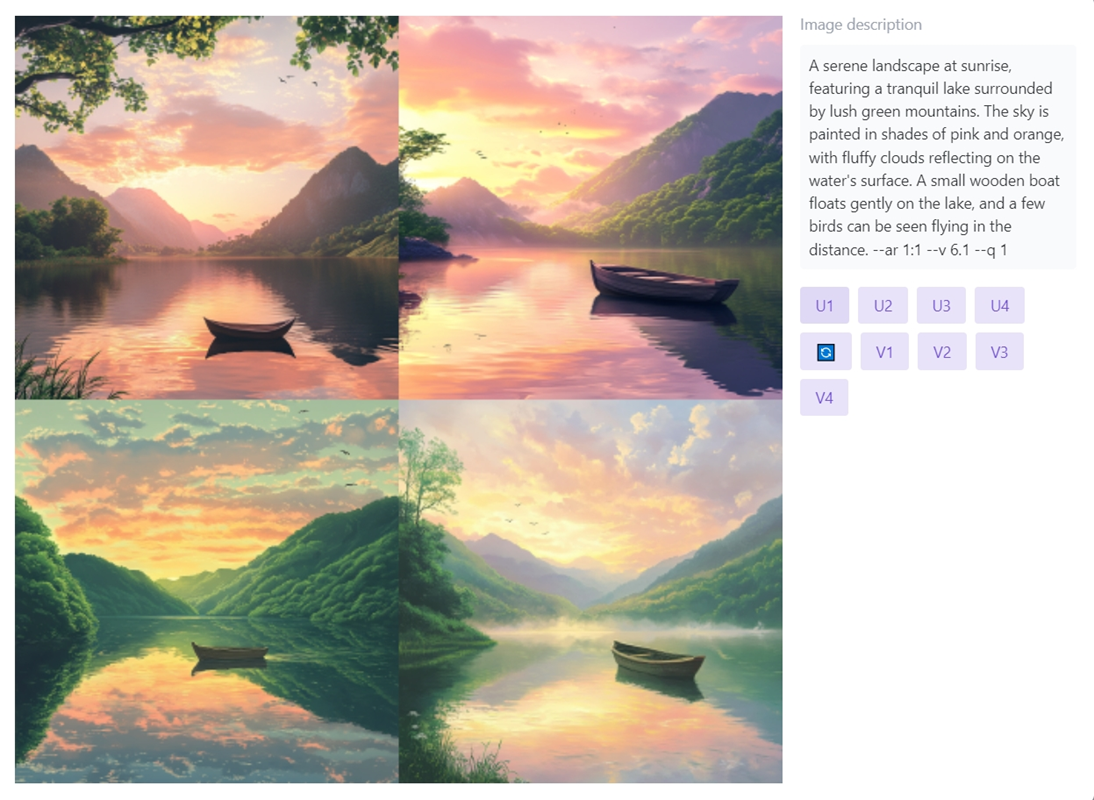
[Optional - Midjourney] Split the image or continue to adjust the image
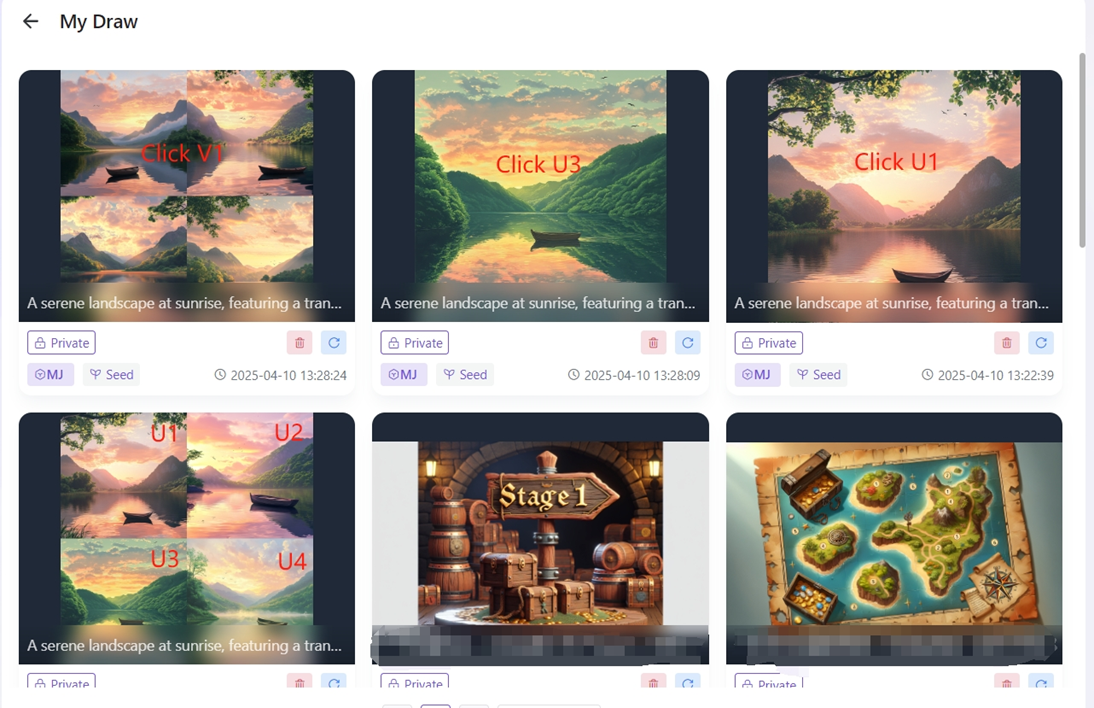
Split the image:
Click the U1\U2\U3\U4 button to split the image and obtain a single image.
 Regenerate
Adjust the image:
Click the V1\V2\V3\V4 button to unify the four images into the style of the specified image.
Further adjustments to the parameters can be made to achieve a satisfactory effect.
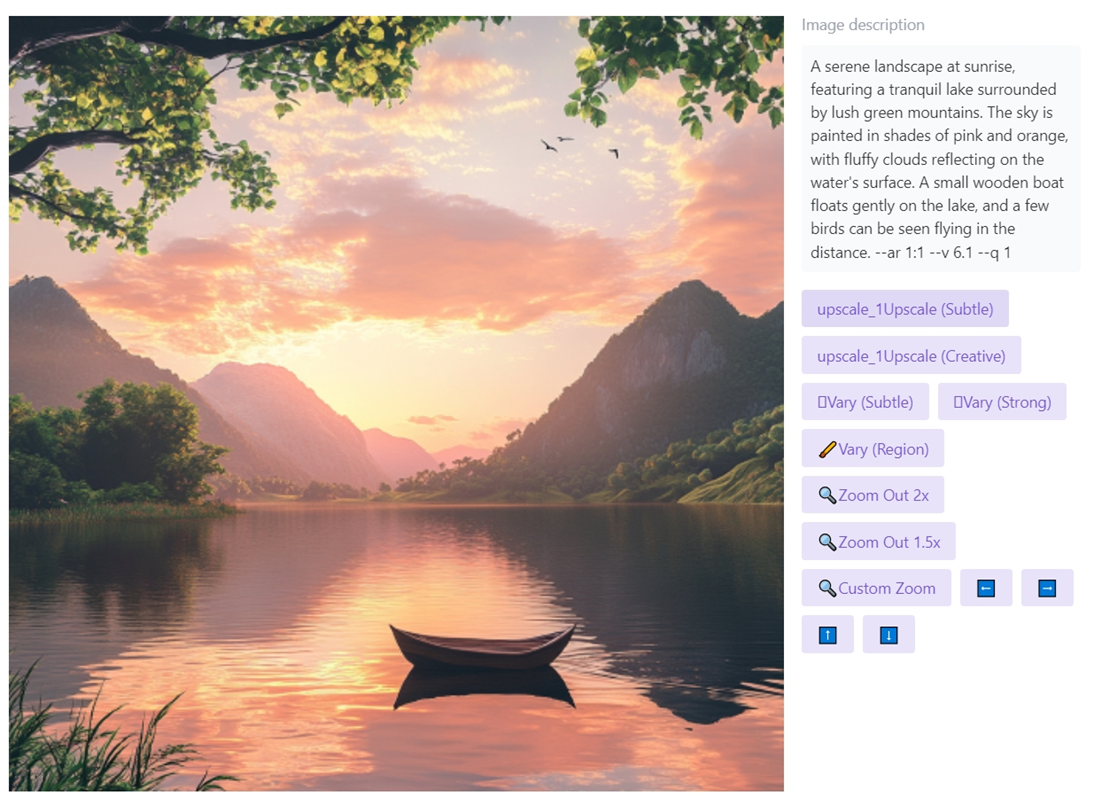
Parameter details:
- Upscale (Subtle): Enhances the image with subtle improvements in detail.
- Upscale (Creative): Enhances the image with more creative adjustments and artistic flair.
- Vary (Subtle): Generates a new image with slight variations from the original.
- Vary (Strong): Generates a new image with more significant changes from the original.
- Vary (Region): Allows you to create variations focused on a specific area of the image.
- Zoom Out 2x: Zooms out the image to show a wider view, doubling the original size.
- Zoom Out 1.5x: Zooms out the image to show a wider view, increasing the size by 1.5 times.
- Custom Zoom: Allows you to specify a custom zoom level for the image.
-
 Expand the image up, down, left, and right.
[Optional] Image blend
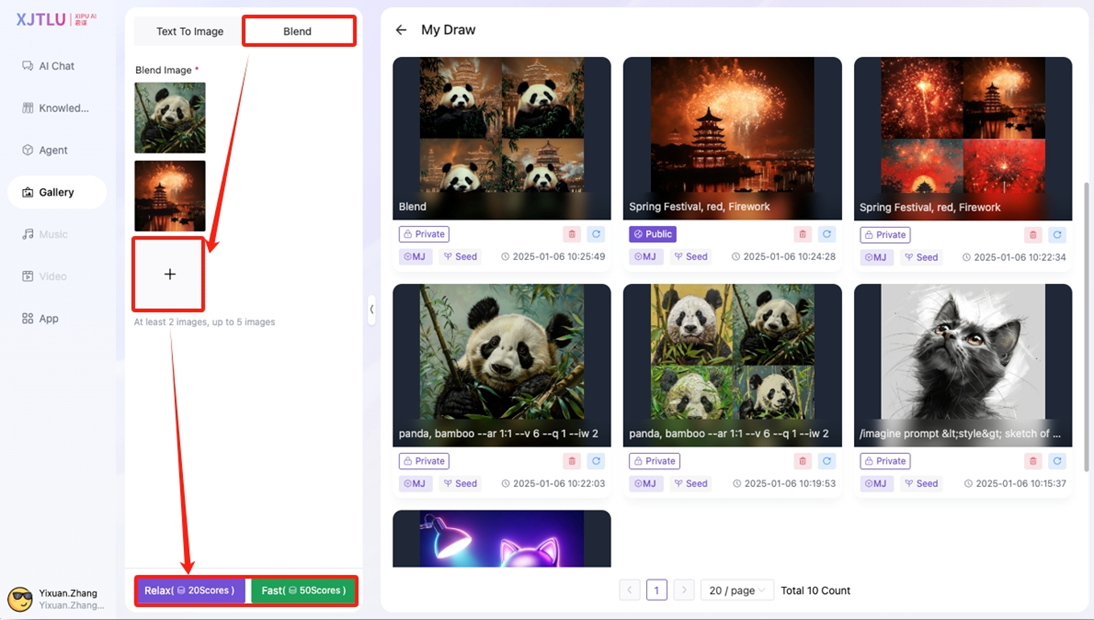
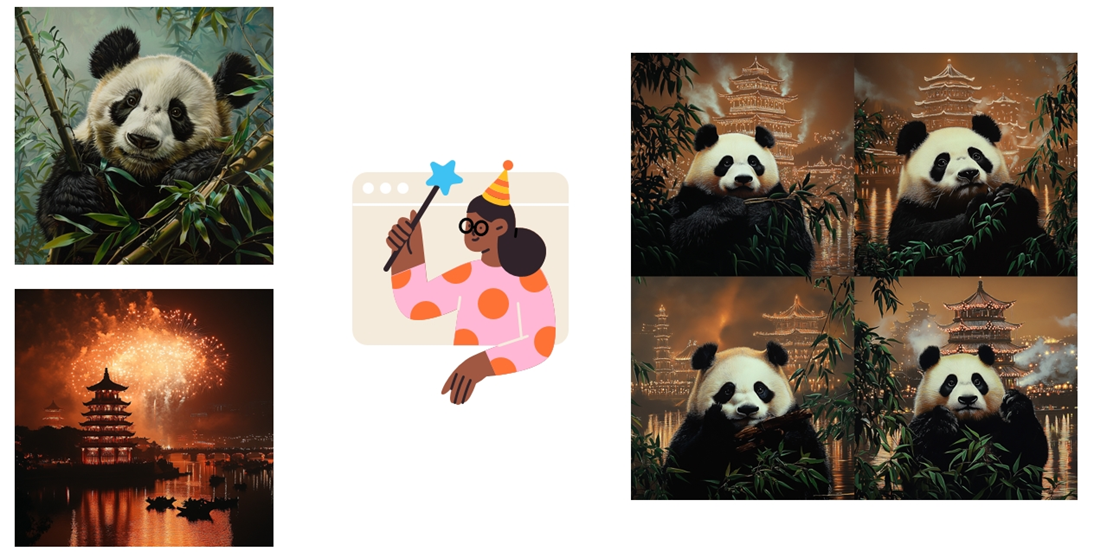
Add images to blend
- Open the 'Blend' tab
- Add images
- Click the Relax/Fast button to blend images
Tips:
- Prompt is best used in English; using Chinese may result in the inability to generate derivative images.
- Derivative Image Limitations in Midjourney: Only images within the last 10 hours can have the button to generate related derivative images. Recommendation: If you want to generate derivative images, please do so as soon as possible.
- Task Limit: No more than five tasks at a time. If there are five ongoing tasks, you cannot continue generating.
Next steps:
Now that you have a general idea on how to create an image via the Gallery feature, you may be interested in the following related articles: